
Google Authenticator
Google LLCTools
3.923.47K Reviews
- Version
- Varies With Device
- Installs
- 100.00M
- Age Rating
- Everyone
Screenshots
Our Review of Google Authenticator
 Analysis by Appyee
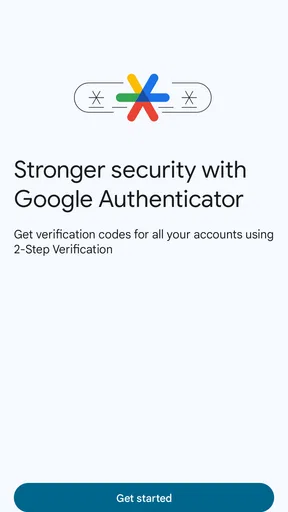
Have you ever found yourself on the verge of a mini heart attack, frantically trying to recall your password? Well, that's where Google Authenticator comes in to save the day. This app is like having a digital bouncer for your online accounts, offering an extra layer of security without the hassle.
When a password needs a second check
I find the app most useful when I already have an account I care about and want more protection than a password alone. Google Authenticator is a free tools app from Google LLC, rated for Everyone, with an average rating of 3.8 from around 628,000 ratings and over 100 million installs. Those figures suggest it is familiar to many people, but the choice still comes down to whether a phone-based code fits your routine.
A practical example is signing in to an account on a laptop while your phone is nearby. After enabling two-step verification for that account, the sign-in asks for a second code as well as the password. That extra step can help if a password has been exposed, but it also means the phone becomes part of your access plan. I would set this up before a trip or a device change, not while rushing to log in from an unfamiliar computer.
Setting Up: Easier Than You Think
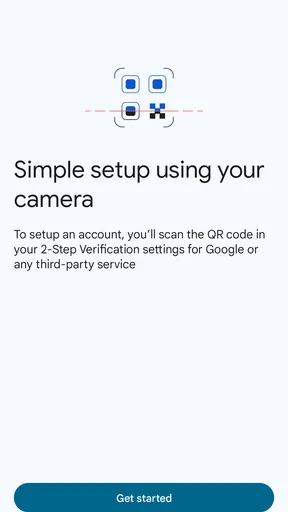
Getting started with Google Authenticator is surprisingly straightforward. Once you download the app from the Play Store or App Store, you're just a few taps away from bolstering your account security. The app uses two-factor authentication (2FA), which might sound a bit techy, but trust me, it’s as simple as pie. You just scan a QR code on your computer screen with your phone's camera, and boom, you're set up!
From setup to a successful sign-in
The QR scan is the handoff between the service you are protecting and the authenticator: the service displays setup information, and the phone adds the account so it can produce its sign-in codes. I recommend completing the service’s own confirmation step before closing the setup screen. That small check helps catch a scan or entry mistake while you can still retry, rather than discovering it later when you need access.
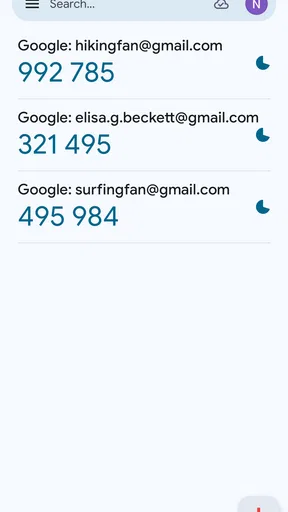
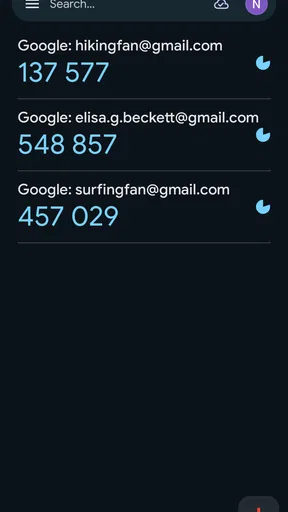
Once an account is listed, the everyday flow is simple: look up its current code in the app, then enter it on the sign-in page that requested it. The code changes regularly, so I avoid copying it at the last second; if it is close to changing, waiting for the next one can be less frustrating. The authenticator supplies the code, but the account’s website or app still controls the login and recovery process.
Security That Packs a Punch
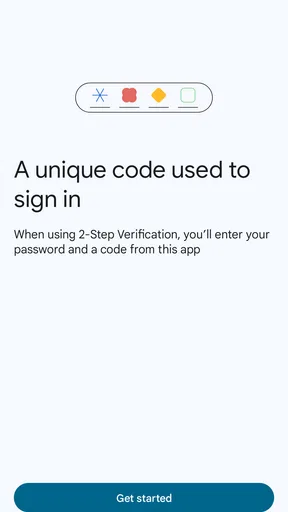
Now, let's talk about why you need this app. We all know that passwords can be stolen or guessed, but with Google Authenticator, you get a unique code every 30 seconds. This means even if someone knows your password, they won’t get far without your phone. It's like having a secret handshake that only you know. Security is paramount these days, and this app ensures you’re not caught slipping.
I see this as a useful layer, not a guarantee that an account cannot be compromised. It works best when I pair it with a strong, distinct password and keep the phone itself protected. It also changes the sign-in trade-off: a person who has the password alone may be stopped, while I need the phone available when I sign in. For accounts I use on several devices, that extra step is usually worth the small interruption.
No More Excuses
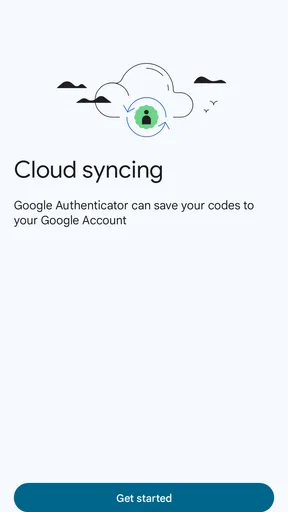
Alright, let’s address the elephant in the room: "But what if I lose my phone?" It’s a valid concern but don’t worry. Google Authenticator allows you to set up backup options, so you’re never locked out. You can also transfer accounts between devices with ease, ensuring a seamless experience even if you upgrade to a new phone.
I would not treat “backup options” as a reason to skip planning. Before replacing a working phone, I would check the account’s own recovery choices and make sure I understand how its two-step verification can be restored or moved. These arrangements are tied to the services you protect, so the process may differ from one account to another. A quick review while you still have the old device is much safer than trying to improvise after it is gone.
That workflow matters most for people who rely on a small number of essential accounts for work, banking, or personal communication. It may be less appealing if you regularly sign in without your phone, share access with a team, or need a solution designed around managed devices. In those situations, an account’s other supported verification methods may be a better fit than a code app alone.
Minimalist Design, Maximum Impact
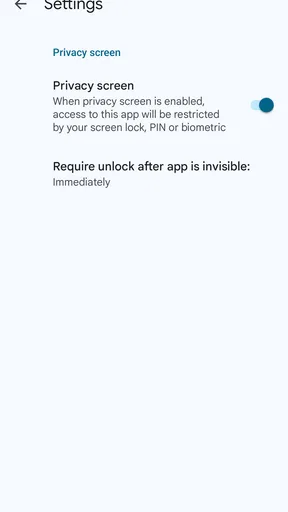
The app’s design is clean and no-nonsense, which I personally love. It’s not cluttered with unnecessary features, and you don’t need to be a tech wizard to navigate it. The interface is intuitive, and the app is lightweight, so it won’t hog your phone’s resources. It's designed to do one thing, and it does it exceptionally well.
That focus is also the main comparison point with alternatives. A dedicated authenticator is more direct than relying on text-message codes, which require the message to arrive and can be awkward when phone service is unreliable. On the other hand, some password managers combine saved logins and verification codes in one place, which can reduce app switching but puts more of your sign-in process in the same tool. I prefer a separate authenticator when I want that separation; someone who values an all-in-one workflow may prefer a different option.
One useful habit is to give each account a recognizable label during setup, especially if you protect several services from the same provider. When a login prompt appears, clear labels make it easier to choose the right entry without trial and error. If a service offers more than one way to verify a sign-in, I also take a moment to understand its alternatives before depending on the authenticator as my only route back in.
Who will appreciate this extra step
Google Authenticator suits people who want a straightforward way to generate verification codes for accounts that support this kind of two-step sign-in. I would recommend it to someone comfortable keeping a phone close during logins and willing to plan for device replacement. It is not the best choice for someone who cannot reliably access a phone, dislikes adding a step to every protected sign-in, or needs a shared team process rather than personal codes.
The app is free, and its uncomplicated approach makes it easy to try without turning account security into a large project. Still, convenience depends on the handoff: you must enable verification with each service, keep track of which entries belong to which accounts, and know how to recover access if your phone is unavailable. That is the real ongoing effort, more than using the code screen itself.
Final Thoughts
In a world where our personal and professional lives are increasingly digital, having a reliable security measure like Google Authenticator is a no-brainer. It’s like having a guardian angel for your data, providing peace of mind in this digital age. So, if you haven’t already, give it a whirl. Your future self will thank you for it!
My recommendation comes with one practical condition: set it up deliberately, confirm that each protected account accepts the codes, and think through recovery before changing phones. If that fits how you sign in, this focused tool can make password theft less likely to become account access. If you need a more integrated login manager or cannot depend on having your phone, compare the other verification options offered by your accounts first.
Privacy and Permissions
See what permissions an app requests and how it handles your data.
- Camera
- take pictures and videos
- Other
- view network connections, create accounts and set passwords, measure app storage space, full network access, control Near Field Communication, run at startup, use accounts on the device, control vibration, prevent device from sleeping, read Google service configuration
Verdict
Strengths of Google Authenticator
- Simple and intuitive interface.
- Offline functionality ensures security.
- Supports multiple accounts easily.
- Fast setup with QR code scanning.
- Minimal battery consumption.
Limitations of Google Authenticator
- No cloud sync for backups.
- Limited customization options.
- No desktop app available.
- Cannot recover lost accounts.
- Lacks advanced authentication features.
Other Releases by Google LLC
View All
Google Calendar
Productivity4.6

Google Messages
Communication4.6

Tools4.0

Google TV
Video Players & Editors3.9
Similar Picks in This Category
View AllGoogle LLC4.0

Gboard - the Google Keyboard
Google LLC4.5

Google Play services
Google LLC4.3

Google Play Store
Google LLC4.9

Files by Google
Google LLC4.5

SHAREit: Transfer, Share Files
Smart Media4U Technology Pte.Ltd.4.3
You May Also Like
View All
Frequently Asked Questions
What is Google Authenticator, and how does it work?
Google Authenticator is a two-factor authentication app that enhances account security by generating time-based one-time passcodes (TOTPs) for supported applications. Once you scan a QR code provided by a service, the app generates a unique code every 30 seconds, which you use along with your password to log in.
Can Google Authenticator be used offline?
Yes, Google Authenticator can be used offline. The app does not require an internet connection to generate the time-based codes. This offline capability makes it highly convenient and secure, as you can access your codes even when your device is not connected to the internet.
What should I do if I lose my device with Google Authenticator installed?
If you lose your device with Google Authenticator, it's crucial to have backup codes saved elsewhere or to use a recovery option provided by the service you're securing. Some services allow you to transfer codes to a new device, but it’s best to check each service’s recovery options beforehand.
Is it possible to transfer Google Authenticator codes to a new phone?
Yes, you can transfer Google Authenticator codes to a new phone using the app’s "Transfer accounts" feature. This process involves generating a QR code on your old device and scanning it with your new device. Make sure both devices are on hand and follow the in-app instructions carefully.
Are there any limitations to using Google Authenticator?
While Google Authenticator offers enhanced security, it has some limitations. It lacks cloud backup, meaning if you lose access to your device without having backup codes, you might face difficulties in account recovery. Additionally, it doesn’t support multiple user profiles, which can be a drawback for shared devices.
